
iOS
ZicNet on iOS with Happ
Import your ZicNet subscription link into Happ iOS.
The subscription link comes from the ZicNet panel after registration or purchase; open the panel, copy the link, then import it into Happ using the steps below. If the panel does not show the link or QR/clipboard copying breaks it, confirm the correct account, reload the panel, and paste the link into notes to check it before importing. Open panel for the link
Happ is the third-party client app used to import the subscription link and connect. ZicNet is the service that sells plans, manages accounts, and provides the link through the panel.

Happ
iOS
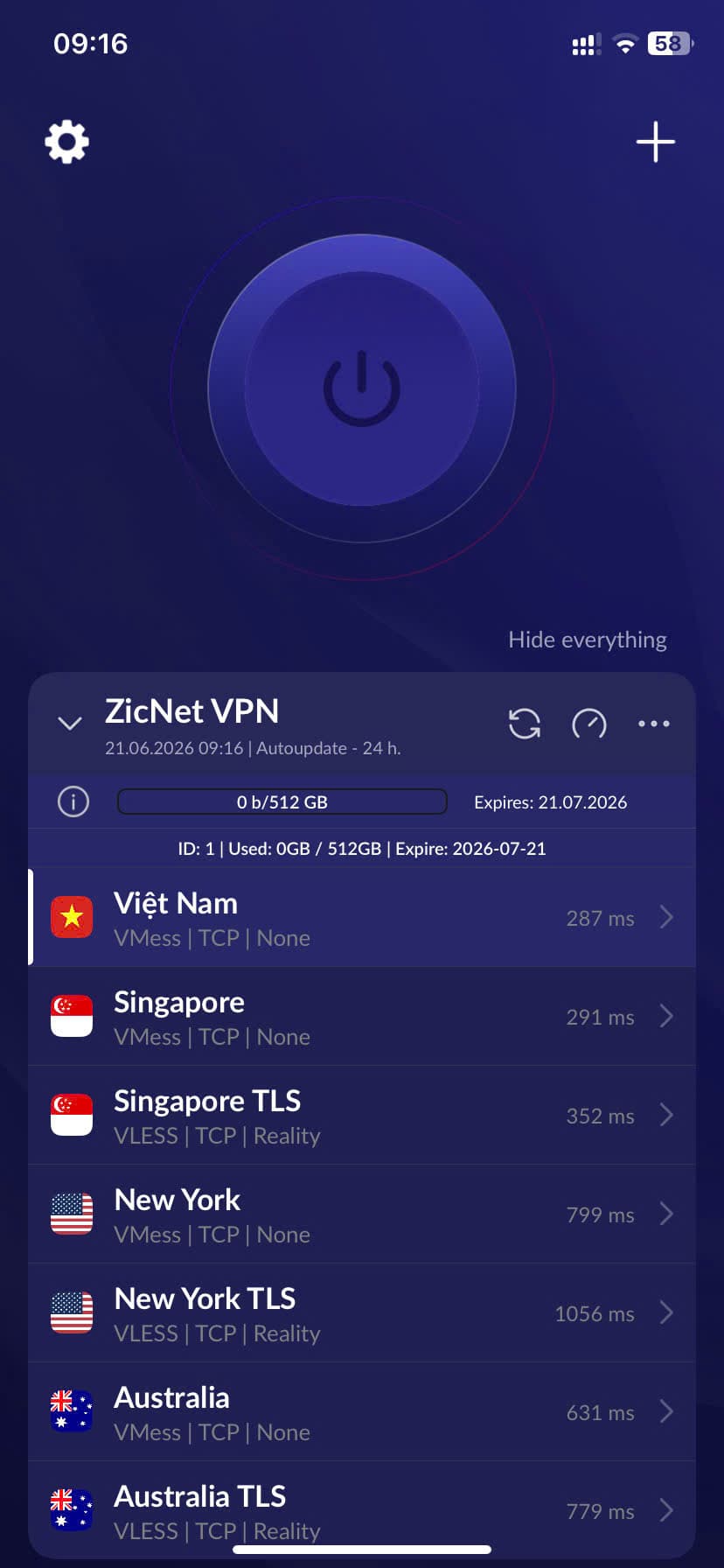
Before setup
On iOS, install Happ from the App Store, allow the VPN profile when iOS asks, then import the ZicNet subscription link from the panel.
- Use an Apple ID that can download Happ.
- Prepare your ZicNet subscription link.
- Allow the VPN permission prompt when shown.
If iPhone or iPad cannot connect
- If you denied the VPN profile, reopen VPN or Device Management in Settings, then allow it again during import.
- Check whether iOS granted VPN permission to Happ.
- Remove the broken profile and import the subscription link again if needed.
- Send the error screenshot and iOS version to support.
Setup guide
Buy or activate a plan in the ZicBoard panel.
Copy the subscription link from your ZicNet account.
Open the client app and add configuration from URL or clipboard.
Update the subscription, choose a suitable server and connect.
If it fails, switch location or send an error screenshot to support.
Frequently asked questions
Do I need manual config?+
No. With ZicNet you only import the subscription link from the panel.
Which server should I choose?+
Start with Singapore or Japan because latency from Vietnam is often good.