

Happ
Android
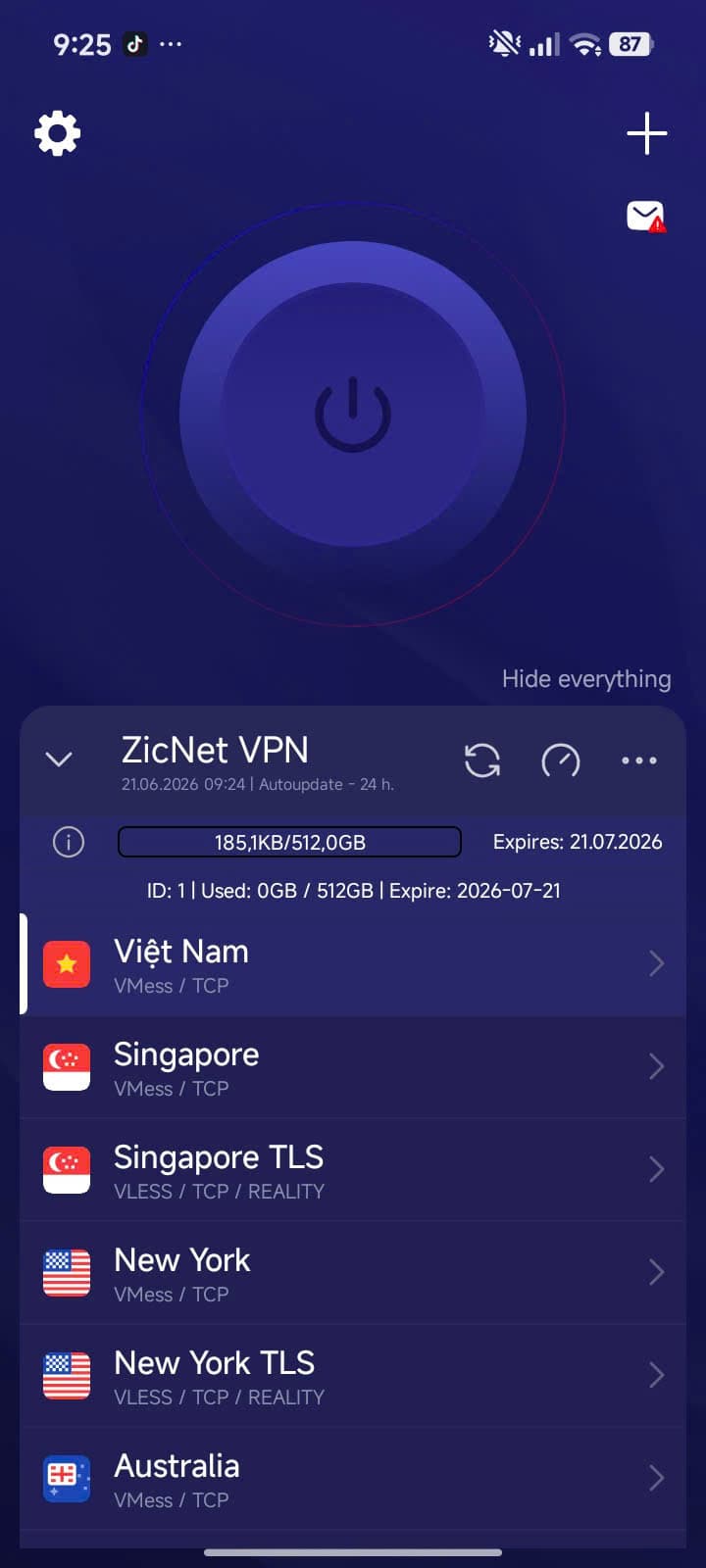
Setup
Choose Android, iOS, Windows, or macOS, install Happ from official sources, and import your ZicNet subscription link with clear device-specific steps.
If you do not have a plan yet, register in the panel first to get a subscription link; if you already bought one, copy the link from the panel and return to the guide for your device. Register in the panel
Happ is a third-party client app; ZicNet is the service that sells plans, manages accounts, and provides subscription links through the panel.
Happ
Android
Choose an app for your device

Android
Happ
iOS
Happ
Windows
Happ
macOS
Happ
All devices
Happ
Download Happ for Android, iOS, Windows, and macOS, then import your ZicNet subscription link from the panel without typing manual VPN configuration.
Happ
Android
Happ
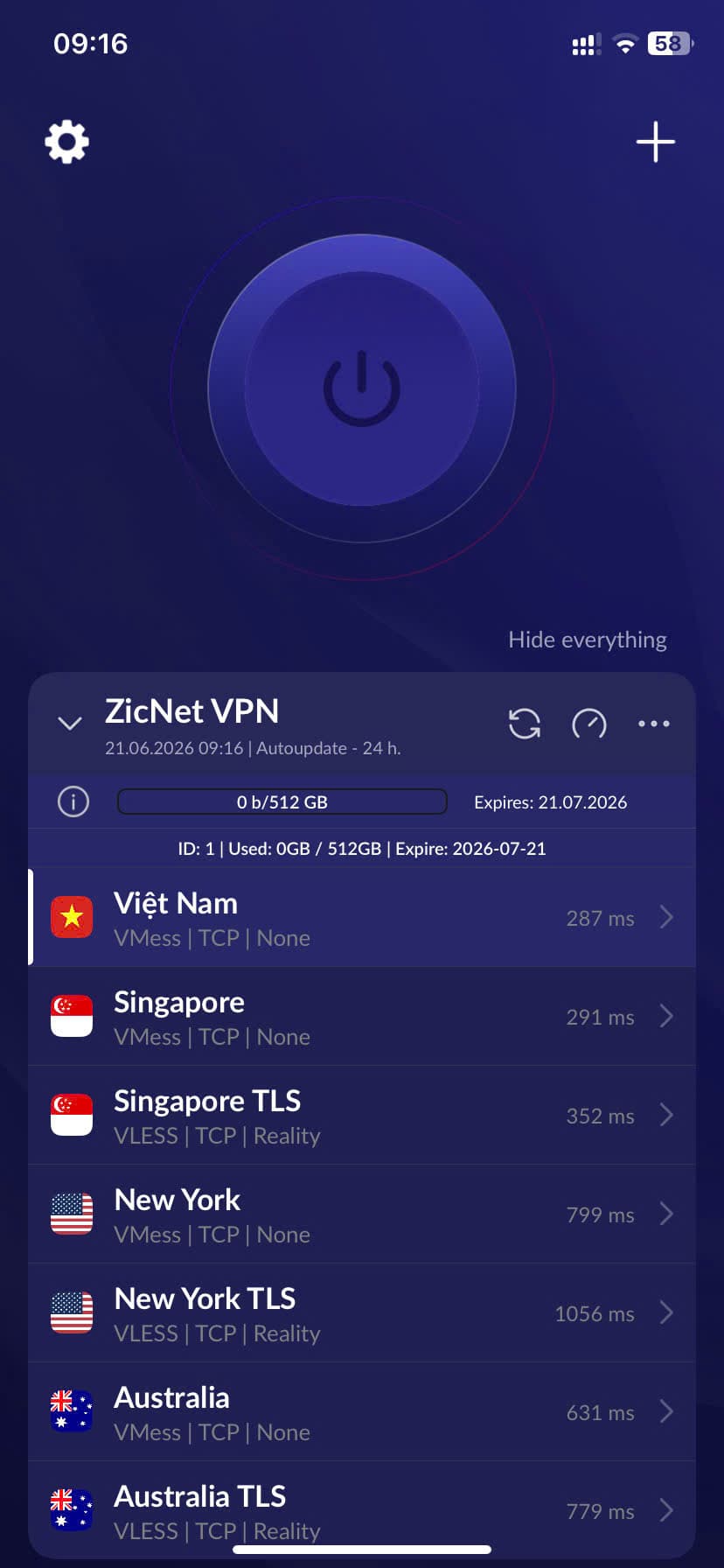
iOS
Happ
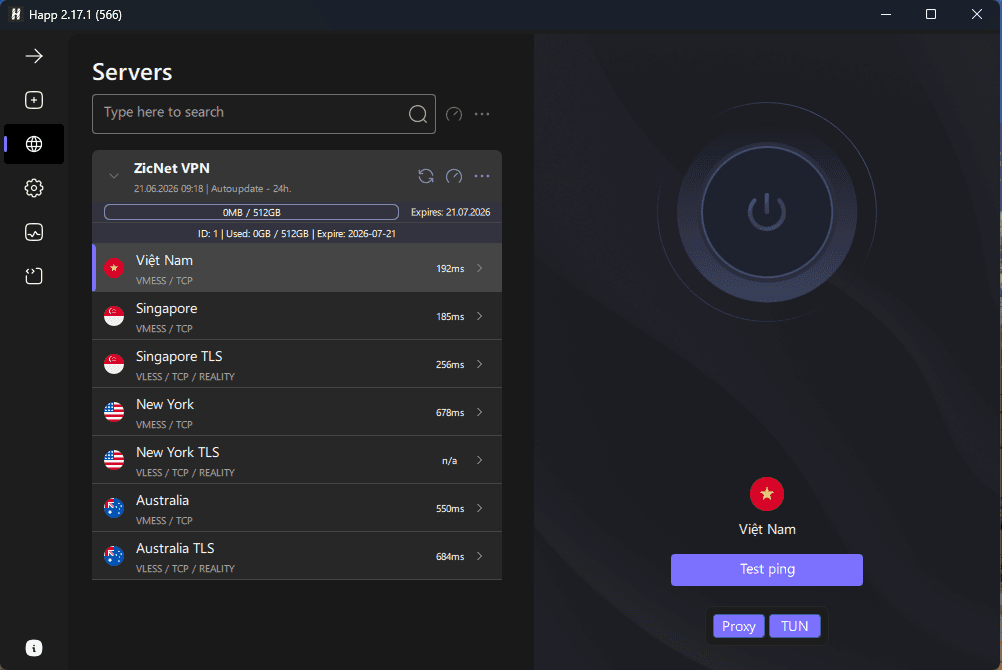
Windows
Happ
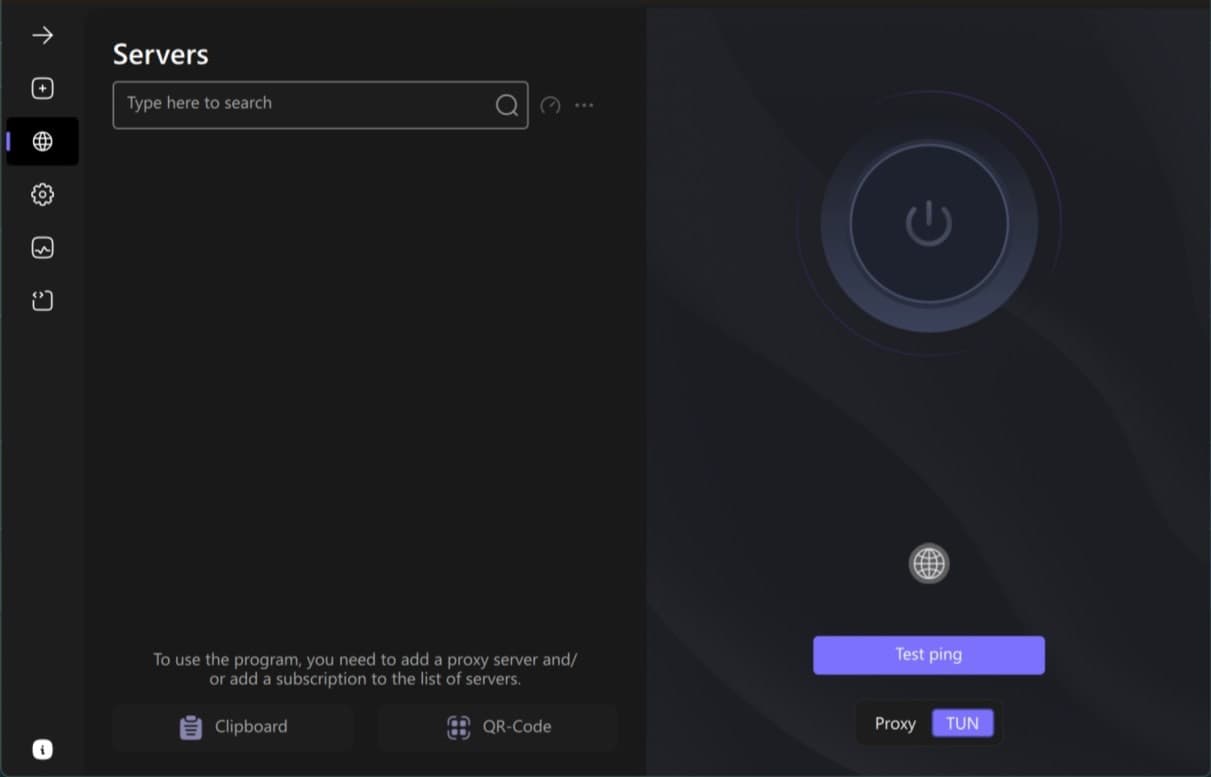
macOS
Happ
All devices
All devices
After buying a ZicNet plan, copy the subscription link from the panel, import it into Happ, and refresh the subscription before choosing a server.
The ZicNet setup flow should be: activate a plan, install Happ for the right device, copy the subscription link from the panel, import it into the app, and test a nearby location first. If it fails, send support a screenshot and device details.
Log in to vpn.zicnet.vn and confirm the plan is active before importing the link.
All devices currently use Happ, which keeps setup and support simpler.
Device, app, screenshot, ISP, and issue time help support check faster.
Register or activate a plan in the ZicNet panel to get your subscription link.
Install Happ for your Android, iOS, Windows or macOS device.
Paste the link into Happ, update the subscription, choose a server and connect.
Send your device, app, error screenshot and issue time so support can check faster.
Test speed before choosing a route